Real-time monitoring.
Know when a console goes live.
A console running without an open session is revenue leaving without a record. PsTally detects it over your existing WiFi — no extra hardware, nothing installed on the console.
THE IDEA
The moment a console wakes up, PsTally notices it over your WiFi and checks whether a session is open for that bay. If a console is being played with no session — and it stays that way past the time you set — you get a ghost alert on your phone. Nothing goes on the console itself. It all runs over the WiFi you already have.
Install the PsTally Monitor app
After signup, download the PsTally Monitor app from your dashboard (Windows 10/11). It comes pre-configured for your lounge — no setup wizard, no IP hunting. Run it on a PC that stays on at the lounge, connected to the same WiFi as your consoles.
Map each console to its bay — one at a time
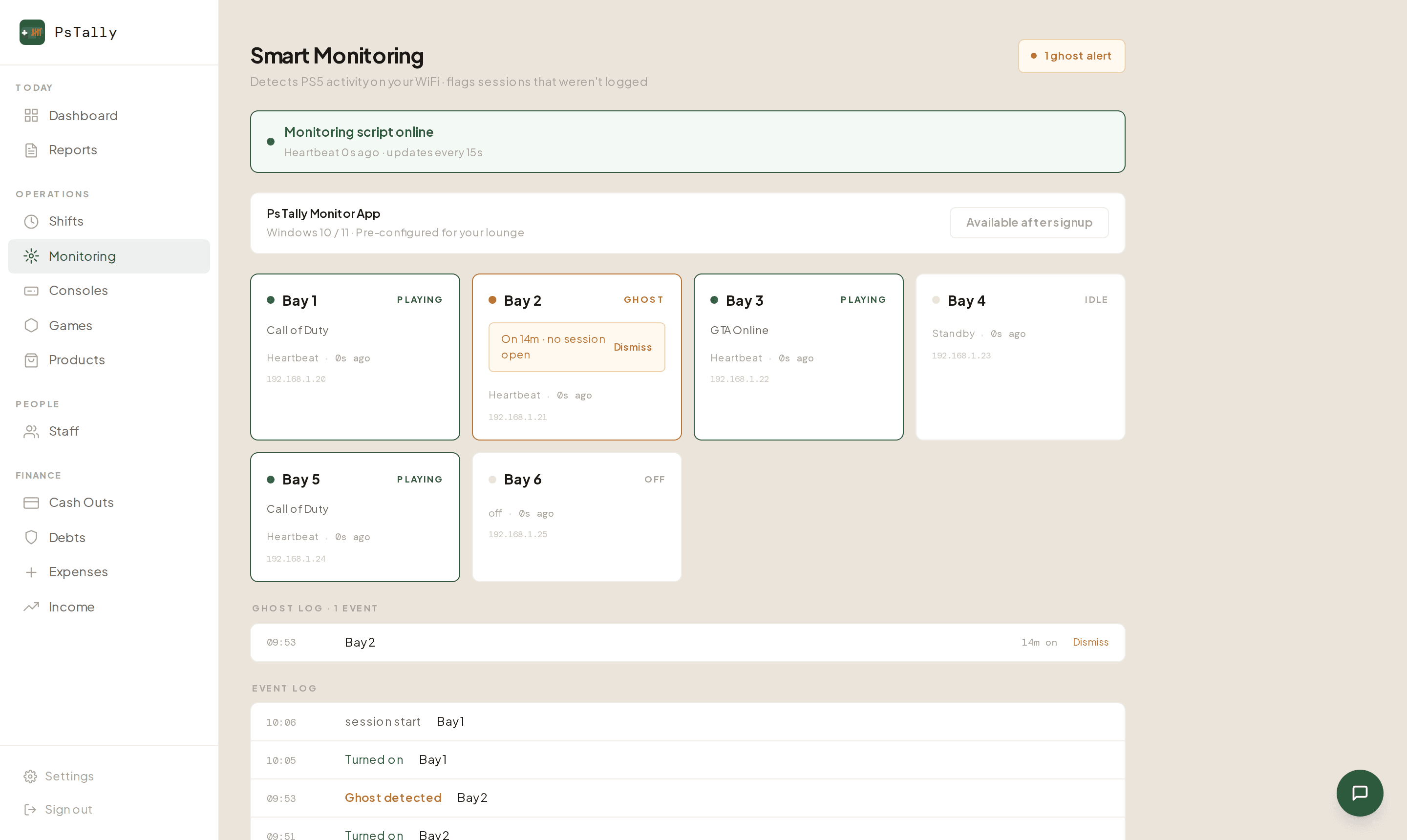
The first time, you pair each bay with its console. On the Monitoring page, pick a bay, switch on only that console with all the others off, and PsTally detects the one that just came online and asks you to confirm it's that bay. Work down the line, one console at a time — it only needs to be done once. A green “Monitoring script online” status shows the Monitor is watching.
Watch your bays live, from your phone
Open Monitoring on your phone and every bay shows its live status — playing, idle, or off — with the game and how long it's been running. It's the same picture your staff sees at the counter, wherever you are.
Let the ghost alerts do their job
When a console is being played with no session open, PsTally flags it as a “ghost” and alerts you. It waits about 5 minutes first — long enough to ignore boot-up and quick tests, short enough to catch real gaps. Want it tighter or looser? Just message us and we’ll set it for your lounge.
What you see when it fires
The bay turns orange on your Monitoring screen and reads something like “On 14m · no session open”— which bay, how long it’s been running, and who’s on shift. You get the same as a push notification on your phone.
The alert isn’t an accusation — it’s a reference point. You call the lounge, the staff opens a session, and the record exists. Most of the time it’s a simple oversight. The fact that it was caught is the point.
Monitor running, but it can’t see your console?
If your bays show “no signal” even though the Monitor is online, it’s almost always the local network — the Monitor and your consoles can’t “see” each other on the WiFi. Your internet speed or provider doesn’t matter here; only that both are on the same router. Work through these in order:
Same WiFi, at the lounge
The Monitor must run on a computer at the lounge, on the same WiFi network (same name) as your consoles. It watches the local network — it can't reach a console on a different network or in another building.
Console switched on
It has to be powered on (not fully off) when you check. In rest mode it shows as idle; fully off, it can't be seen.
Turn off device isolation
Many routers — and any “guest” network — stop devices from seeing each other. In your router settings, look for “AP isolation”, “client isolation”, or “guest network” and switch it off. Avoid range extenders or mesh hops between the PC and the consoles.
Allow it through Windows Firewall
If Windows asks when the Monitor first runs, click Allow. Otherwise add PsTally Monitor as an allowed app in Windows Firewall settings.
THE 30-SECOND TEST
On the PS5: Settings → Network → Connection Status — note the IP address (e.g. 192.168.1.42). On the PC (same WiFi): open Command Prompt and type ping 192.168.1.42.
Replies? The devices can see each other — so it’s the firewall. Allow PsTally Monitor through Windows Firewall.
Times out? The router is keeping them apart — put both on the same main WiFi, turn off isolation, and remove any extender between them.
Still stuck after all that? Message us on WhatsAppand we’ll help you get it seeing your consoles.
Common questions
Does monitoring work with Xbox and PS4?
Yes — PsTally detects PlayStation (PS5 and PS4) and Xbox consoles over your WiFi. PlayStation also reports rest mode; Xbox is picked up as on or off. It's most proven on PS5, which is what most lounges run, so if you have Xbox or a mixed setup, message us and we'll confirm it's dialled in for your consoles.
Do I need extra hardware?
No. Nothing is installed on the consoles, and you don't need a special box. The Monitor app runs on any Windows PC that's already at the lounge and on the same WiFi.
Does the Monitor app need to stay on?
Yes — it should run on a PC that stays powered on during opening hours, since it's what watches the consoles. If it stops, your Monitoring page shows the heartbeat go offline so you know.
Is a ghost alert accusing my staff of theft?
No. It's a reference point, not an accusation. Most ghosts are simple oversights — a console switched on before the session was opened. The point is that it gets caught and logged.
Will I get spammed with alerts?
The threshold controls that. Set it to about 5 minutes and you won't hear about boot-up or brief activity — only gaps long enough to matter.
How do I update or reinstall the Monitor?
Quit it first, or the install will fail. Click the small ^ arrow at the bottom-right of the screen, near the clock, to show hidden icons. Right-click the PsTally Monitor icon and choose Quit. Now install the new version (or uninstall) normally — it runs quietly in the background, so Windows won't replace it while it's still running. It starts again on its own next time the PC is turned on.
Keep going
Set up monitoring for your lounge.
Works over your existing WiFi. Nothing installed on the console.
Get started free →